Stellar POS in depth
Take payment, send orders to the kitchen and balance the drawer at closing. The full tour of the POS, with real screenshots from the demo.
A hospitality POS is judged on three things: whether the cashier can take payment fast at peak hours, whether orders reach the kitchen correctly, and whether the money adds up when you close the drawer. That is what this manual is about.
What you'll see
- The terminal: take payment in three taps
- Cash, card and split payment
- The kitchen display
- The cash drawer and the Z report
- Control: where the money leaks
- The menu: categories, modifiers and combos
- Multiple locations and franchisees
- Delivery: Glovo, Uber Eats and your own
- What happens if the internet goes down
- Price
1. The terminal: take payment in three taps
The screen is designed for a tablet and for fingers in a hurry: categories at the top, products in the middle, and on the right the order building up as you go.
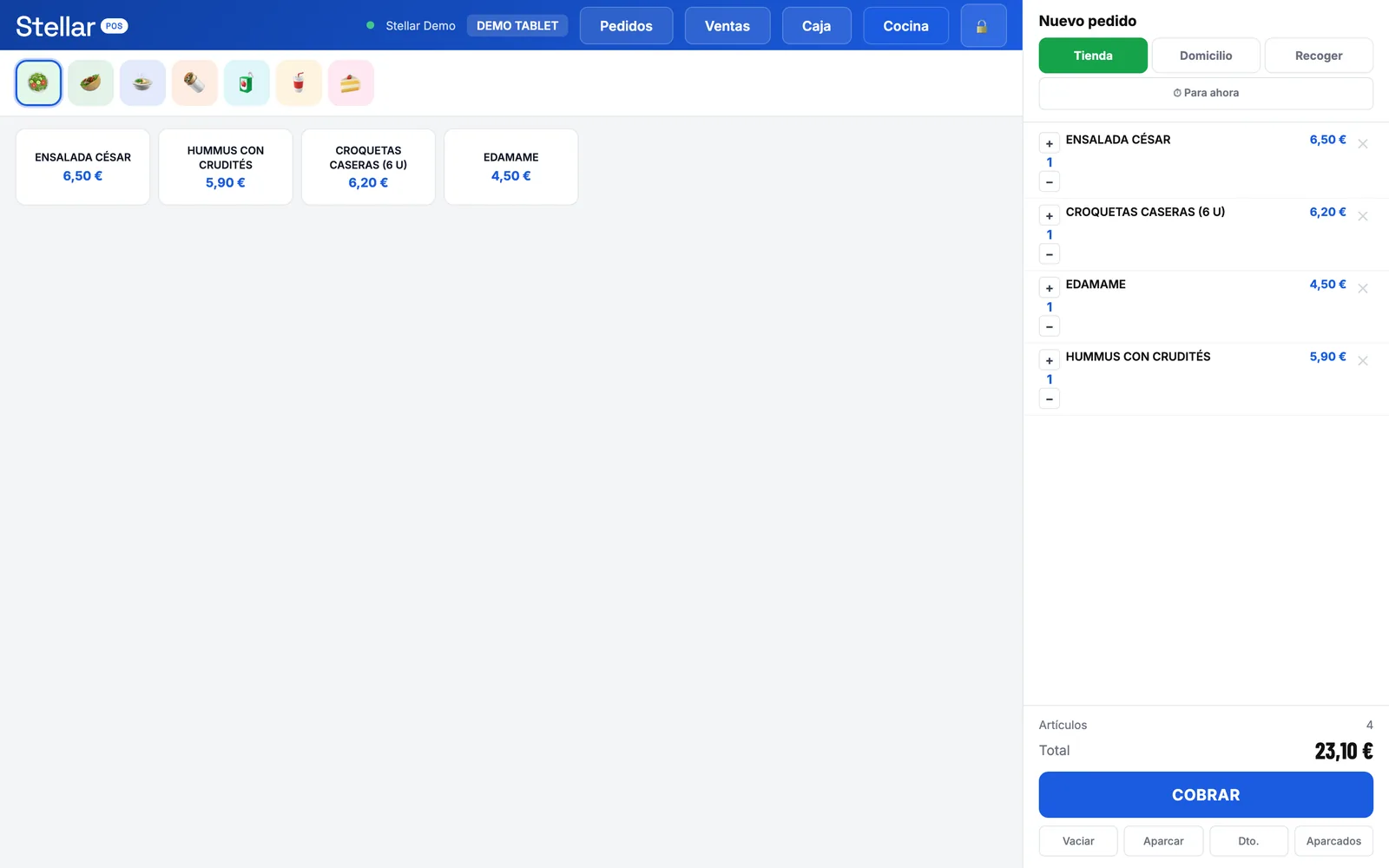
The first thing it asks for when you start an order is the channel: in-store, delivery or pickup. It is not a design whim: without a channel you cannot tell later whether a sale was over the counter or from a platform, and the cash-up stops adding up. That is why it is required before the first line.
From there you can park an order to serve another customer and pick it up again later, apply a discount per line or on the total (with a maximum cap you set yourself), and take payment.
2. Cash, card and split payment
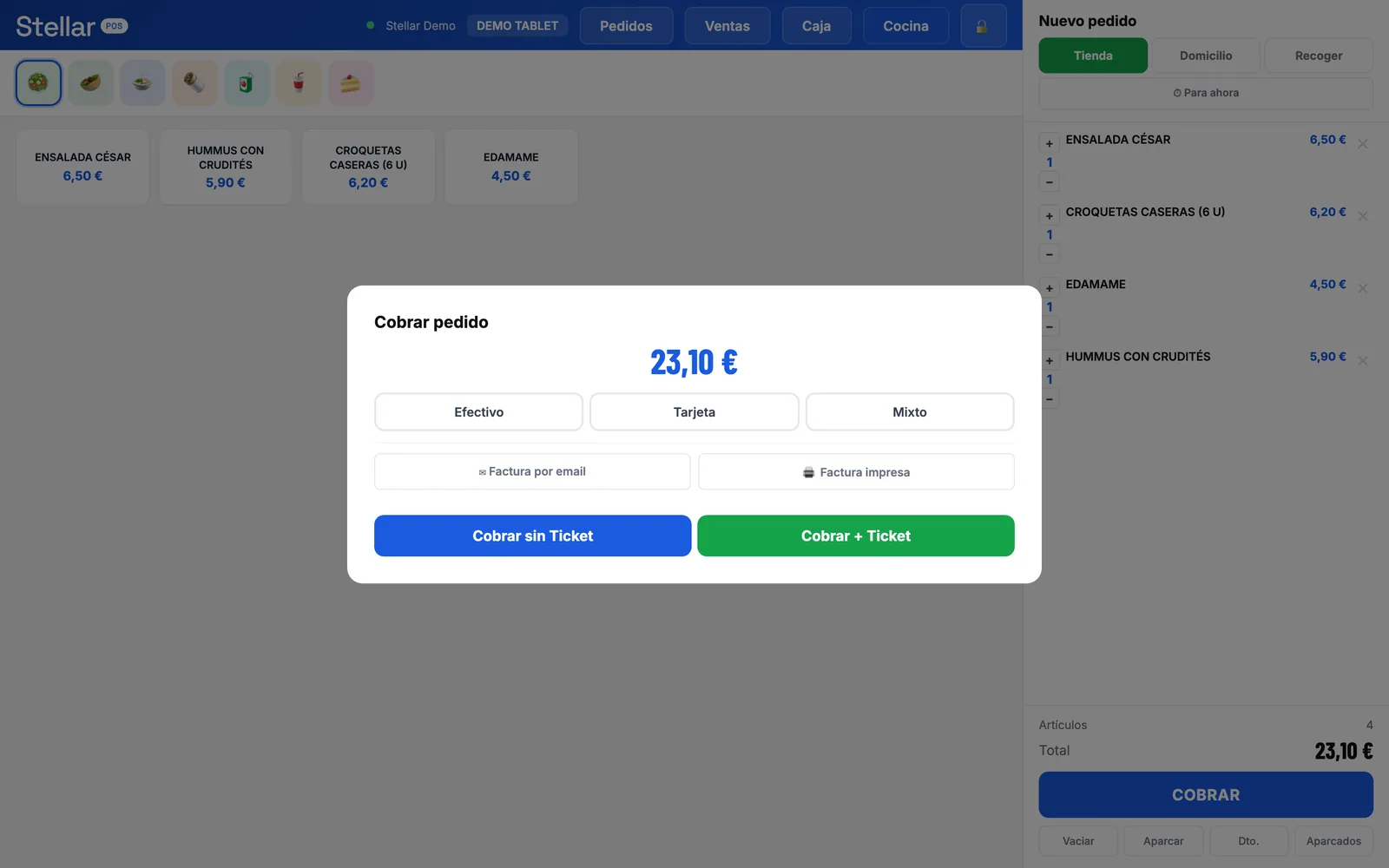
With cash you key in what the customer hands over and the POS calculates the change. With card, the amount goes to the card terminal. And split payment is solved in a specific way that is worth understanding: the cashier only keys in the cash part, and the server calculates the rest. That way nobody can declare more cash than there actually is in the drawer.
The invoice can be issued on the spot — by email or printed — or later, from the day's sales, if the customer asks for it afterwards. Numbering is sequential per location and per year, and the system refuses to invoice if the location has no tax ID configured, so it never issues an invalid invoice.
3. The kitchen display
Orders show up as cards and move through statuses: prepare → ready → on the way or delivered. There are status filters with counters, a configurable sound alert, and you can assign who handles each order.
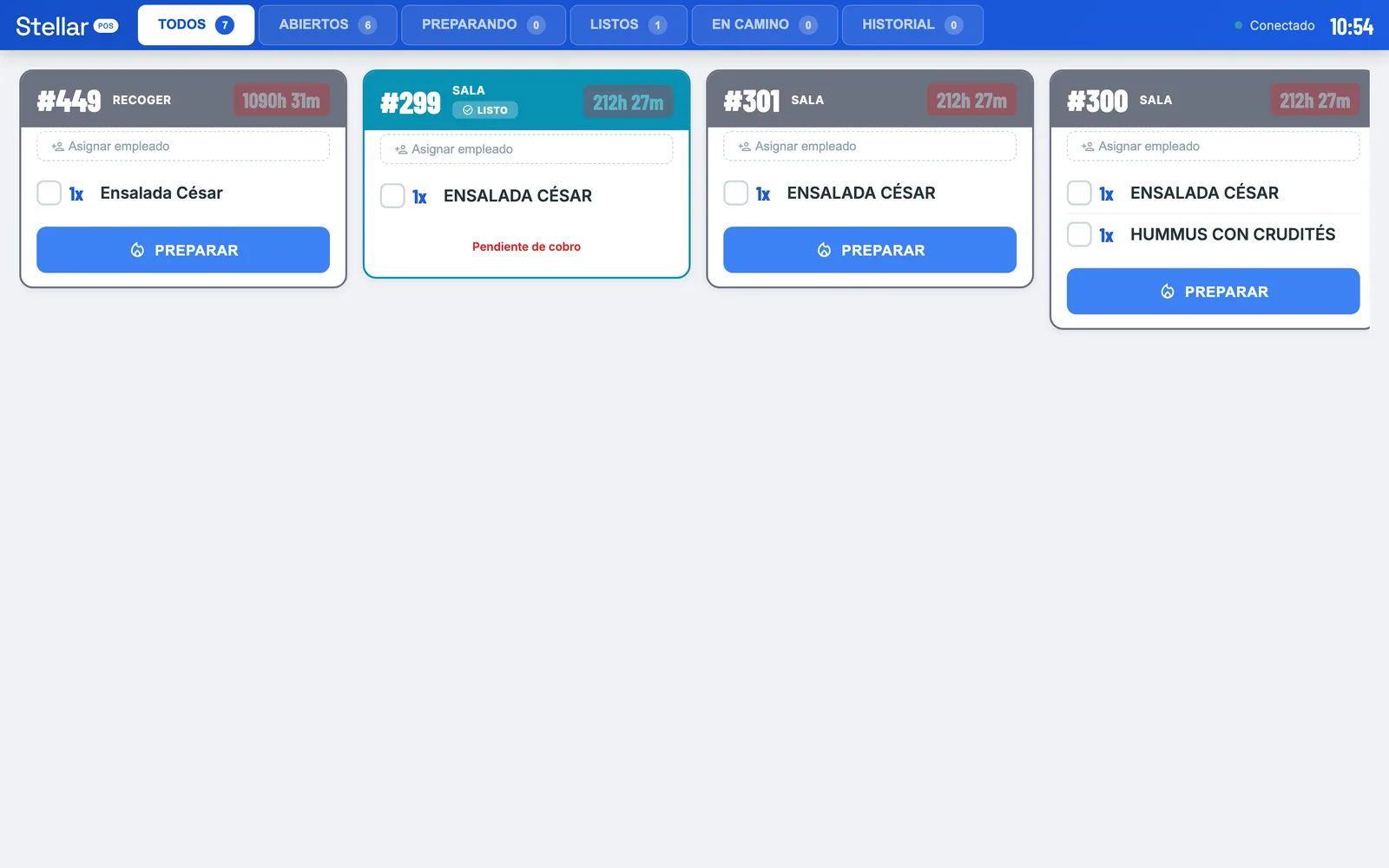
The guard that prevents discrepancies: an order that has not been paid cannot be closed or marked as delivered. It is allowed through to “on the way”, because on delivery you take payment at the door. This check runs on the server, not on the screen: there is no way around it.
4. The cash drawer and the Z report
The day opens by declaring the starting cash, allows interim cash counts and manual movements (money in and out, each with its reason), and closes with the Z report.
That report is not just a single total: it breaks things down
- by payment method — cash, card, split and platform;
- by the actual VAT rate of each line (21, 10, 4 or 0 %), not an average rate;
- by channel and platform, so you know what came in through Glovo and what over the counter;
- the cash count: what should be in the drawer versus what is actually there;
- and voids and refunds, kept separate from sales.
There is one rule that prevents the most common mistake in the trade: a sale marked as card that comes from a platform is not a card-terminal payment — it is a prepayment from the platform. If you count them together, the reconciliation with the bank never adds up.
5. Control: where the money leaks
There is a screen dedicated to watching the holes cash escapes through: unpaid orders, voids, and at which location and on which day money is missing. You can view it by day or by month, and any manager with access to their location can see it.
It is not a cosmetic feature: it was born from auditing our own locations and finding patterns you cannot see with the naked eye.
6. The menu: categories, modifiers and combos
Everything is set up from the panel: categories, products with photos, VAT per product, prices per price list (so the same product can cost differently in-house and on delivery), marking items out of stock or recommended, groups of modifiers (with free or surcharged options) and step-by-step combos.
You can also have different catalogs per location, something you will need as soon as a location has its own menu or different prices.
7. Multiple locations and franchisees
The structure is company → locations → franchisees. Each location has its own printers, its channels, its payment methods and its own subscription.
Franchisees get their own portal: they see their billing, their cash-ups with PDFs, their reports, and manage their subscription — without seeing anything from the rest of the network. The central panel has six different roles, from administrator to read-only, scoped per location.
8. Delivery: Glovo, Uber Eats and your own
Orders from Glovo, Uber Eats and Just Eat come straight into the kitchen through the Sinqro integration, without anyone typing them in, and the menu is sent to them from the panel itself with the price list that matches each channel.
Orders from your own online store (Stellar Store) come in through the same place, and when you mark the order as delivered on the POS, the customer sees it updated in their order tracking. If the order is for delivery, the POS dispatches it to Stellar Riders.
9. What happens if the internet goes down
You keep taking payments. Sales are stored on the tablet itself and resent on their own when the connection comes back, with automatic retries. And if the server were to reject one on recovery, it is not silently discarded: it gets flagged for a person to review.
10. Price
€64/month + VAT per location, or €640 a year (the price of ten months). No cost per user or per terminal: you can have as many tablets as you need at that location. No lock-in.
Try it yourself
The demo is a real POS: you can build an order, take payment and watch it appear on the kitchen display. No sign-up.
Open the POS demo →