Stellar HR explained in depth
Shifts, time tracking, time off and overtime. This is the full tour of the tool, screen by screen, with real screenshots from the app.
Stellar HR was born out of a problem of our own: eight sites, staff that changes every week and a labour inspection that can ask you for the working time records of the last four years. What follows is the manual for the tool exactly as it works today.
What you'll see
1. The weekly schedule, the heart of it all
The screen where you'll spend 80% of your time is a grid: people in the rows, the seven days in the columns. Each cell is a shift.
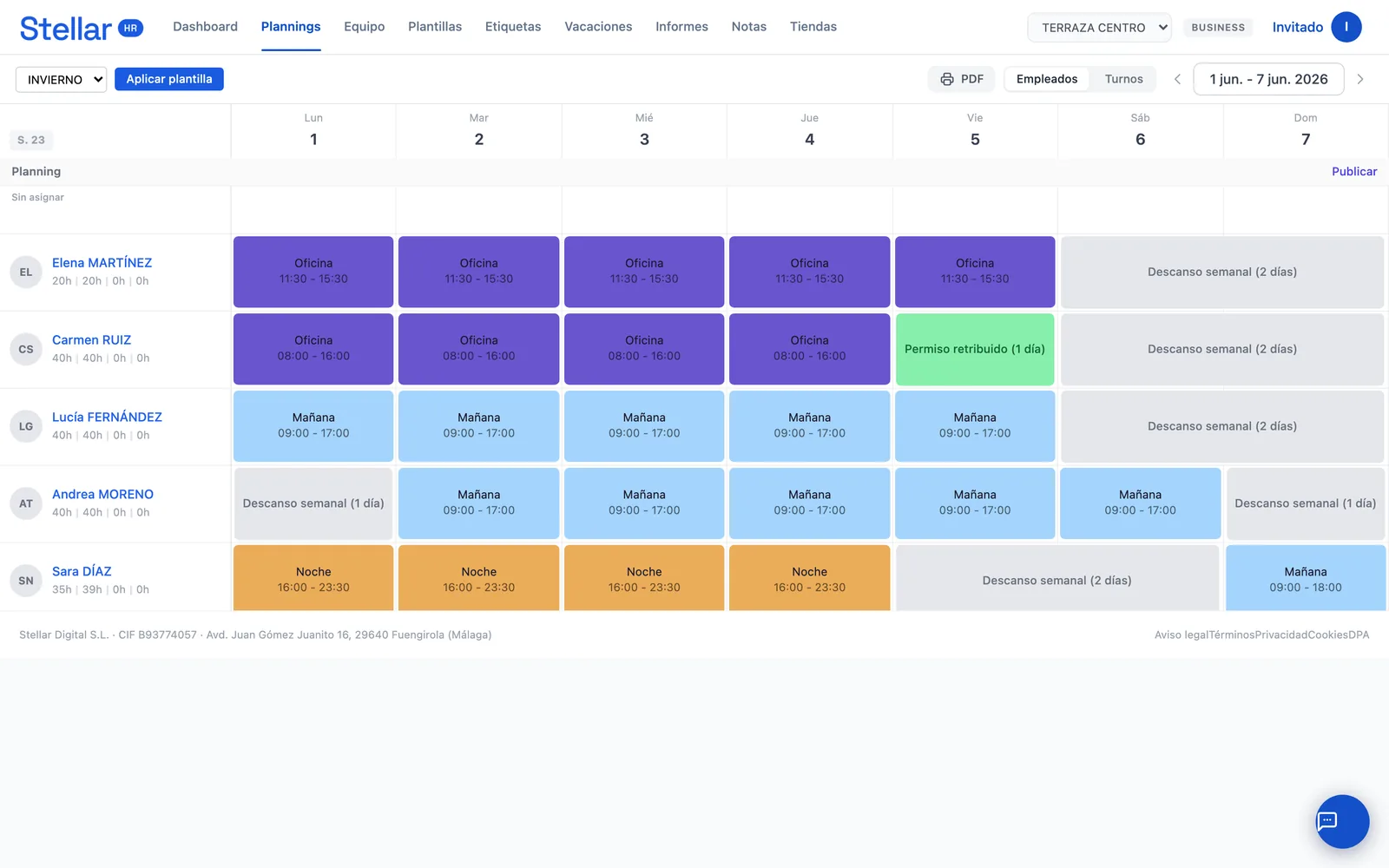
Right from the cell you can create, move, duplicate or delete a shift, mark a weekly rest day or time off, and correct a clock-in without leaving the screen. To the left of each person you'll see four figures: contract hours, planned hours, overtime and deficit. They're there so you don't close the week with someone at 52 hours without noticing.
Publishing is an explicit act
A schedule exists in two states: draft and published. While it's a draft you can edit it without anyone seeing it; when you hit Publish, that week becomes the official version and the team sees it on their phones. You can navigate four weeks ahead and see at a glance which ones are published and which aren't.
This detail matters more than it seems: contract hours are prorated only over the published weeks, so a week still in draft doesn't pollute the month's totals.
You can also export the week as a PDF to pin up in the back office, which is still how a lot of people check it.
2. Templates: the schedule that repeats
In hospitality the schedule isn't invented from scratch every week: there's a winter pattern and a summer one, and they repeat. A template stores that whole pattern — who works, on which days and in which time slots — and applies it to any week with one click.
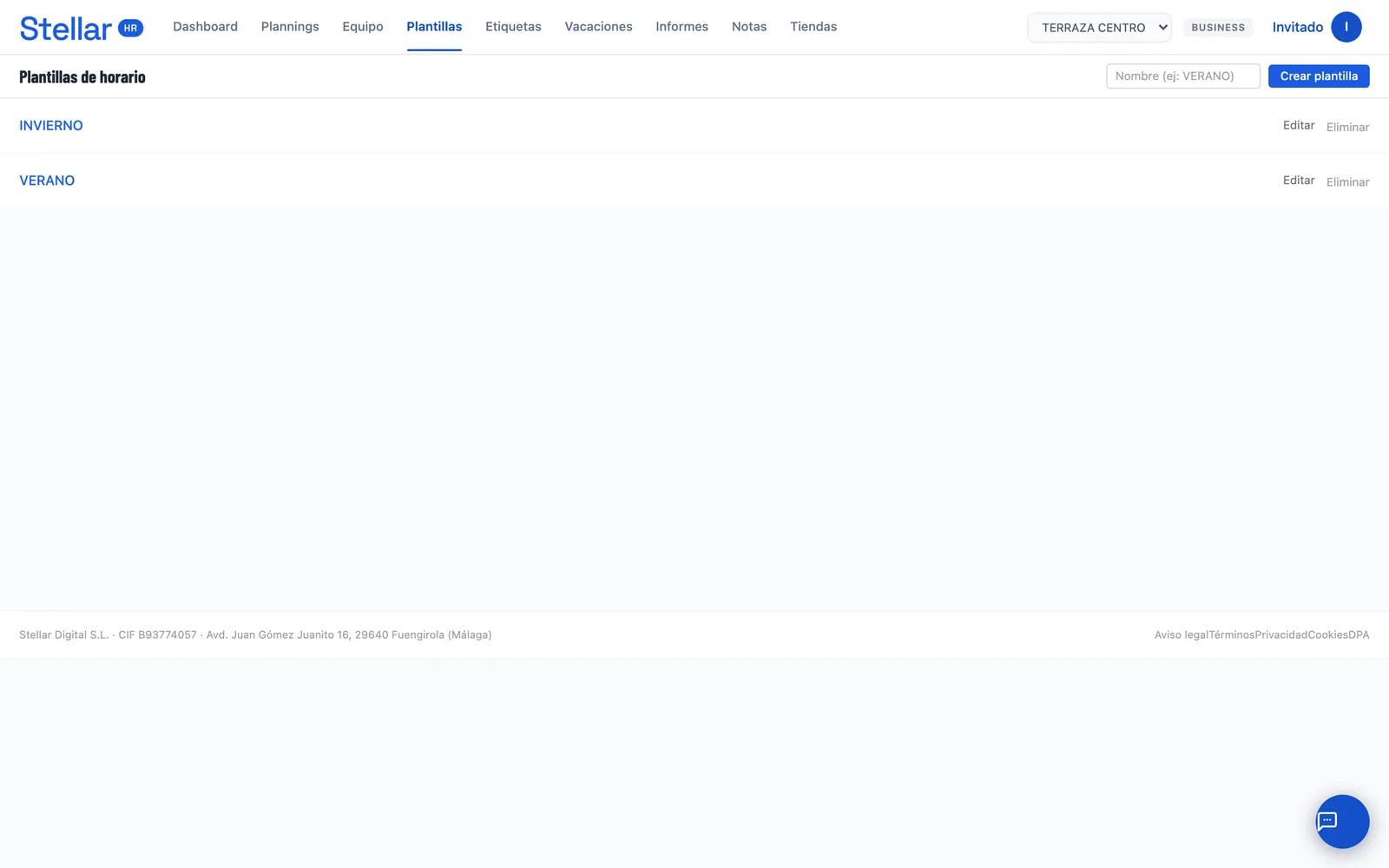
Shift labels are the piece that goes with them: you define “Morning” with its colour and default hours, and from then on creating a shift is just picking the label.
3. The team and their profiles
Each person has a profile with what the tool needs to calculate: contract hours, hourly cost, days of time off per year, category, their clock-in PIN, and whether they can clock in from their phone or only from the site's tablet.
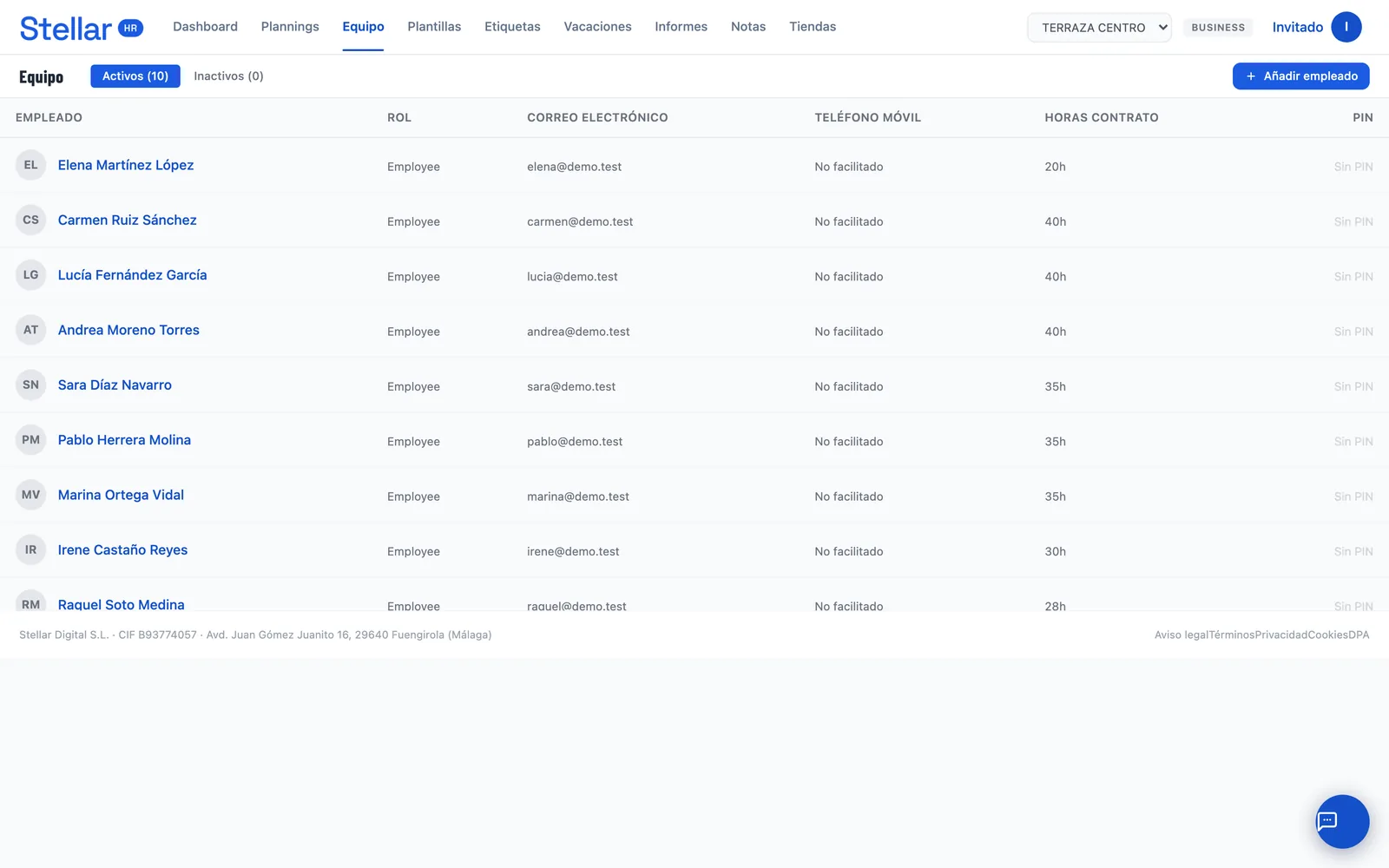
If you add someone with their email, they get an invitation to access their portal. And if the email doesn't go out (say, because SMTP is misconfigured), the signup is not lost: the person is created anyway and you can grant them access manually.
Each employee also has their own documents folder: contracts, payslips or whatever you upload, which they can download from their portal.
4. The three ways to clock in
Not every business clocks in the same way, so there are three routes and they coexist:
The on-site tablet
A fixed tablet in the back office, protected by a location PIN. At the top it shows who's on shift today and their live status — in, on break, out — and when someone clocks in it takes a photo automatically. It's the most common route in hospitality because it doesn't depend on anyone's phone.
It handles shifts that cross midnight, and if the site loses its wifi it stores the clock-ins and sends them when the connection comes back, keeping the real time the button was pressed (it accepts up to 48 hours of delay).
The employee's phone
From the browser or the app, each person clocks in with their email and PIN. The location is recorded and checked against the site radius you've configured.
You decide what to do with each case: the report flags the clock-ins made outside the site radius, with their distance. That way you can tell apart someone who clocked in at the door from someone who did it from home, without the system blocking anyone over an imprecise GPS.
The employee app
The same portal screen, installed as an app. The employee sees their week, clocks in, checks their hours, requests time off and can export their schedule to Google or Apple Calendar.
5. Time off and absences
An annual calendar where every absence is painted by type: time off, sick leave, paid leave, personal days. Employees request them from their portal and you get an alert with the ones pending approval.
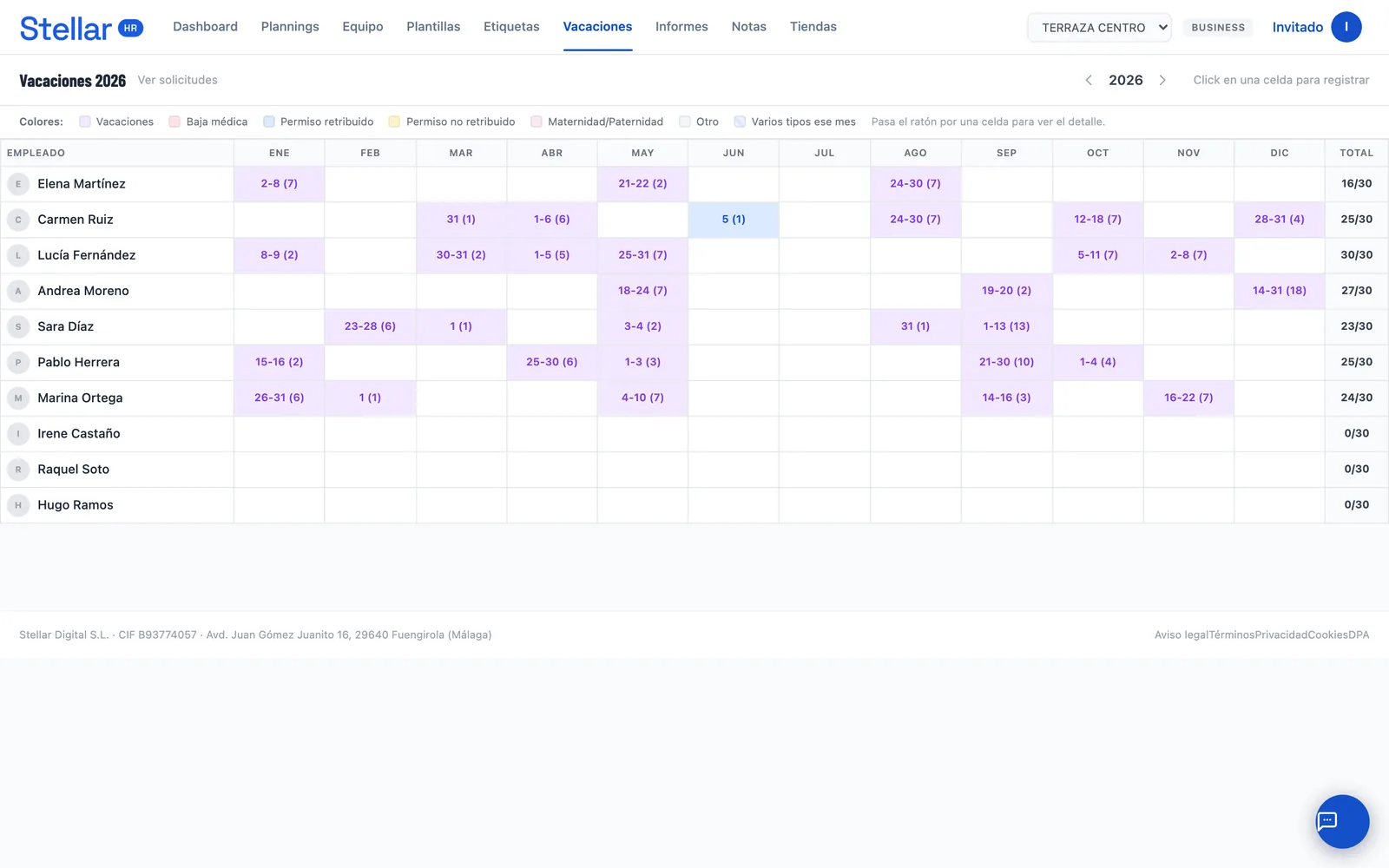
Whatever's approved shows up directly in the schedule, so you can't plan in someone who's on time off without seeing it.
6. Time tracking: shift versus clock-in
This is the screen that answers “did people come in when they were supposed to?”. Each planned shift is matched with its actual clock-in and you see the difference, applying the grace margins you've defined per location (for example, five minutes' courtesy at clock-in).
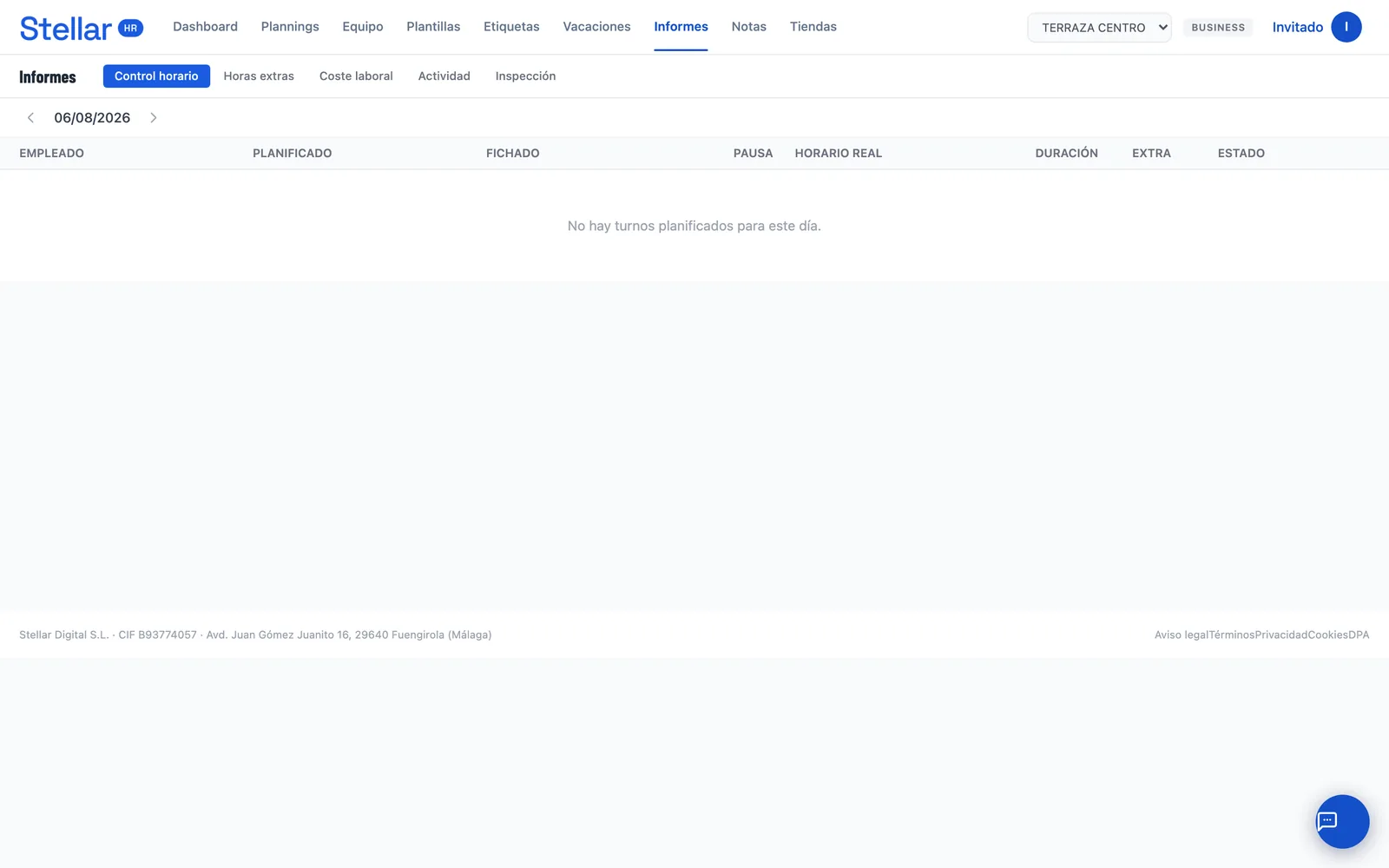
Employees can validate their own clock-ins from the portal, which puts on record that they agree with what was logged. That validation shows up in the inspection CSV.
7. Overtime and the hour bank
Here's where the maths gets serious. Each person's balance is what they actually clocked minus what their contract says, prorated over the weeks you've published.
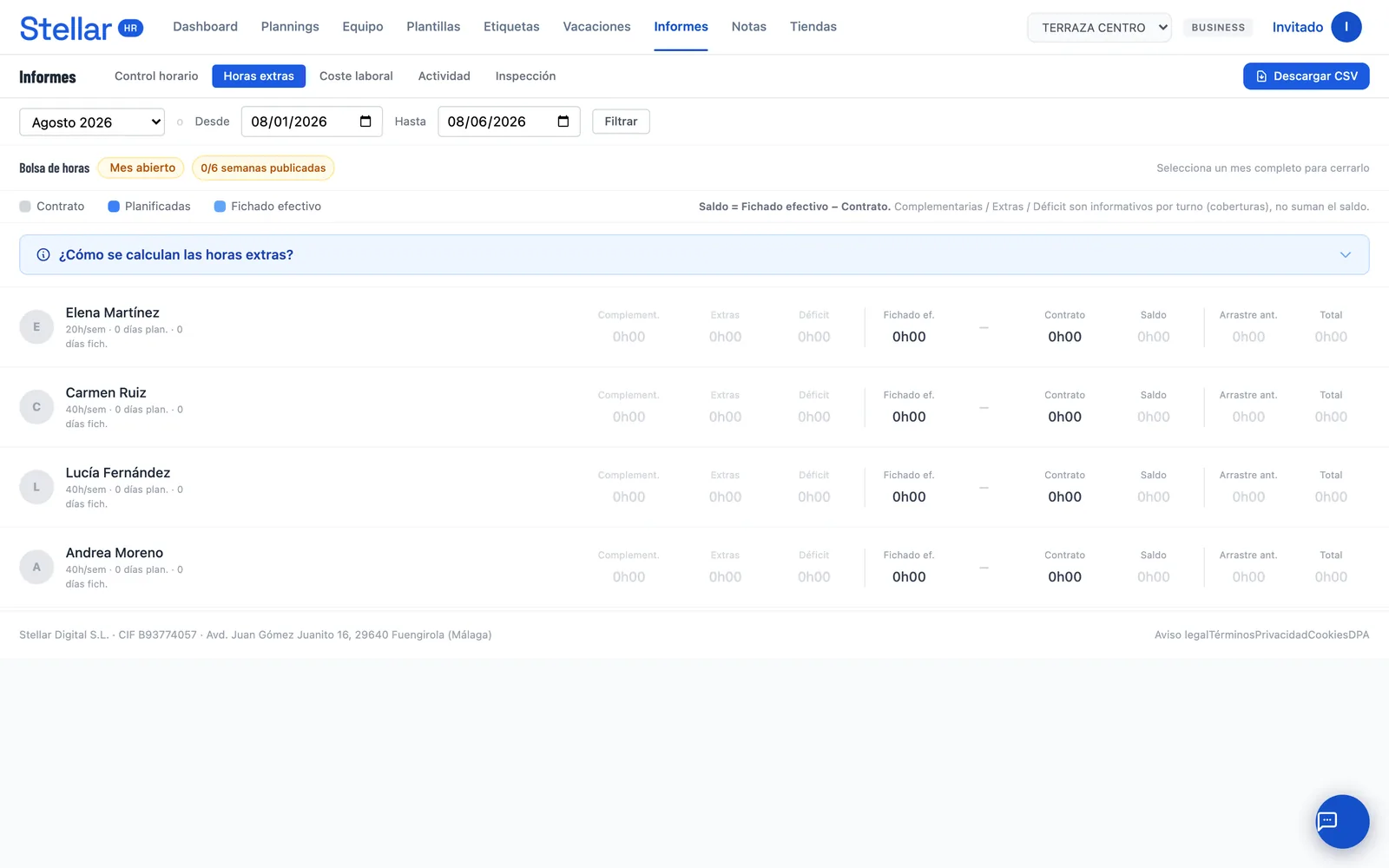
The columns separate complementary, overtime and deficit — informative, per shift — from the balance, which is the one that counts. Absences are filled in neutrally so that time off doesn't show up as a deficit.
The month-end close
Once the month is complete and all its weeks are published, you can close the hour bank: the positive balance gets paid and reset to zero; the negative carries over to the next month. The close can be redone if you need to correct something, and it exports to CSV for your payroll advisor.
If your collective agreement counts by full weeks from Monday to Sunday instead of calendar days of the month, you can turn that on per location. It's not on by default: it's a decision for each business.
8. Multiple locations
Each location has its own employees, schedules and settings: legal name and tax ID for the legal documents, tablet PIN, grace margins, clock-in radius and auto-close for clock-ins someone left open.
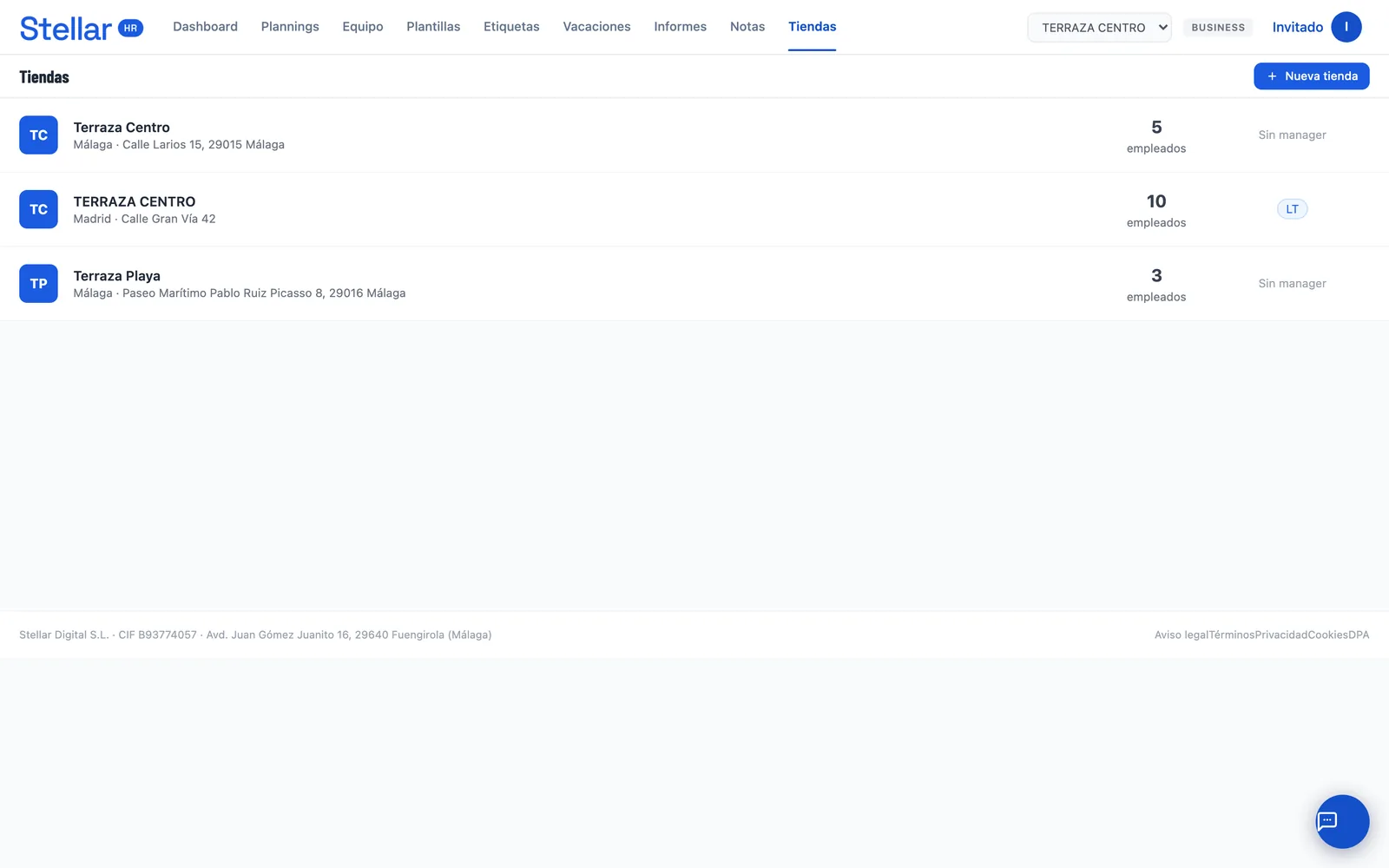
You can create a manager with access limited to their site, so they run their schedule without seeing the rest of the business.
9. What it covers legally
Working time records have been mandatory in Spain since RDL 8/2019 and must be kept for four years. Stellar HR covers that part:
- Daily record of clock-in, clock-out and breaks, with the time set by the server when clocking in from the browser.
- Employee validation of their own clock-ins.
- Inspection export as CSV, with the validation status of each working day.
- Data protection documentation per location: record of processing activities and privacy notice, downloadable.
- Full export of all data, to comply with the right to portability.
The data lives on servers in the European Union and each company is isolated from the others at the database level.
10. Plans and what each one includes
Every feature is in every plan. What changes is the size:
| Plan | Staff | Locations | Pricing |
|---|---|---|---|
| Starter | Up to 15 | 1 | €29/month + VAT |
| Business | Up to 40 | 3 | €59/month + VAT |
| Enterprise | Up to 100 | 10 | €99/month + VAT |
The annual plan works out at the price of ten months. No lock-in: you cancel from the dashboard whenever you want. The Business and Enterprise plans also include an API to connect Stellar HR with other systems.
Try it before you decide
There's a live demo with sample data. No signup, no card: you go in and poke around.
See the Stellar HR demo →